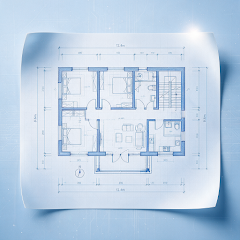
IMAGE & PDF CONVERSION
Turn the drawing at hand into a usable DXF.
Take a photo or choose a PDF, calibrate its dimensions, then convert it to DXF and continue viewing, measuring and annotating.


Android / iOS · Check the relevant store for compatibility and features

HOW IT HELPS
Set the scale. Then convert.
Scanned images and PDFs can both be converted to DXF. Calibrate image dimensions first so the result matches the drawing’s real dimensions. PDFs are parsed page by page from their content streams, preserving entities and layer structure.
- Image to DXF: take a photo or choose from your library
- PDF to DXF: select a file in the app or open it directly from another app
- Two-point calibration in millimeters, centimeters, meters or inches
Meaningful measurements start with scale.
Select both endpoints of a known length, enter its real dimension and apply calibration. A magnifier helps position points while dragging. Pinch to zoom and pan; calibration applies to the entire current drawing.
Read the guideStart a drawing conversion.
- 01
Confirm the source
Tap “Image to DXF” to take a photo or choose from your library, or tap “PDF to DXF” to select a PDF file.
- 02
Calibrate dimensions
For an image, select two endpoints, enter the real length and apply calibration. PDFs go directly to parsing.
- 03
Convert and open
Tap “Convert to DXF.” When conversion is complete, the drawing opens automatically, with entity and layer counts available.
Confirm the source, calibrate dimensions, then convert.
Image to DXF supports the camera and photo library. For PDF to DXF, choose a file in the app or open it directly from another app.


Related features
FAQ
Common questions
Get answers about files, offline use and export before you open a drawing.
GOOGLE PLAY · APP STORE
Open your next drawing on your phone.
Install CAD Assistant to view, measure, mark up and export locally.
Check the relevant app store for device compatibility, features and installation requirements