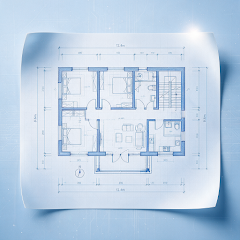
LOCAL & OFFLINE
Save the drawing. Leave the signal behind.
Install the app and save the complete working file to your device. Default local viewing, measurement and markup do not need a connection.


Android / iOS · Check the relevant store for compatibility and features

Prepare your drawing before you go.
- 01
Install the app
While connected, install the Android version from Google Play; for iOS, check the App Store for release availability, installation requirements and device compatibility.
- 02
Save your files
Download complete DWG/DXF files from chats, cloud storage or email.
- 03
Open and check
Open drawings before leaving. Check layers, text and layouts to ensure files are readable.
Local and remote workflows
Default local viewing does not require uploading drawings. If you configure a remote conversion service, confirm its transfer, storage and access arrangements.
Installation, cloud downloads and separately configured remote services need a connection. Confirm remote service data handling with its administrator before use.
Privacy policyFAQ
Common questions
Get answers about files, offline use and export before you open a drawing.
GOOGLE PLAY · APP STORE
Open your next drawing on your phone.
Install CAD Assistant to view, measure, mark up and export locally.
Check the relevant app store for device compatibility, features and installation requirements